
Getting started with iPadian
Open the iPadian Store, find Pac-Man, add it to your Home Screen and play. Then switch between phone and iPad views in this desktop walkthrough.
App availability varies by computer. Some apps require their own account.
Transcript (English)
This is iPadian, an iPad-style simulator for Windows and Mac.
Let's find a game and add it to the Home Screen.
If you see the lock screen, click Tools on the left, then Unlock.
In iPad view, click the blue App Store icon in the dock.
This opens iPadian’s own catalog of compatible apps and games.
Click the search box and type Pac-Man.
Click Get beside the game.
When the button changes to Open, Pac-Man is on your Home Screen.
Click Open, then choose Play.
Use the arrow keys to move Pac-Man through the maze.
To leave the game, click Tools, then Home.
Your new Pac-Man icon is here for next time.
Click Phone for a narrow layout.
Choose iPad to return to the larger Home Screen.
Keep exploring
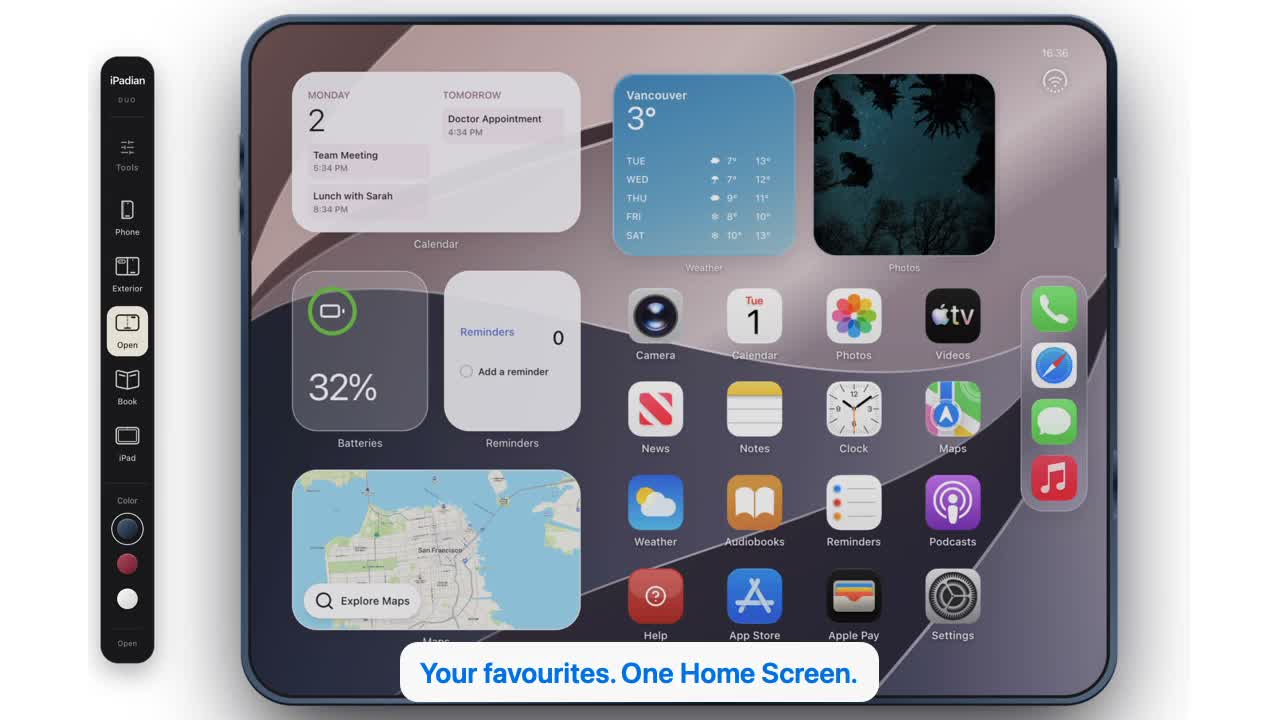 32 seconds
Watch iPadian in action.
A fresh look inside the desktop app: discover the Store, install a game, and explore phone, Duo and iPad views. English narration with captions in four languages.
Watch video 45 seconds
Open Instagram in iPadian
Find Instagram in the iPadian Store, add it to your Home Screen and follow the first launch through to Instagram’s welcome screen. See how to reopen it and switch to Duo view.
Watch video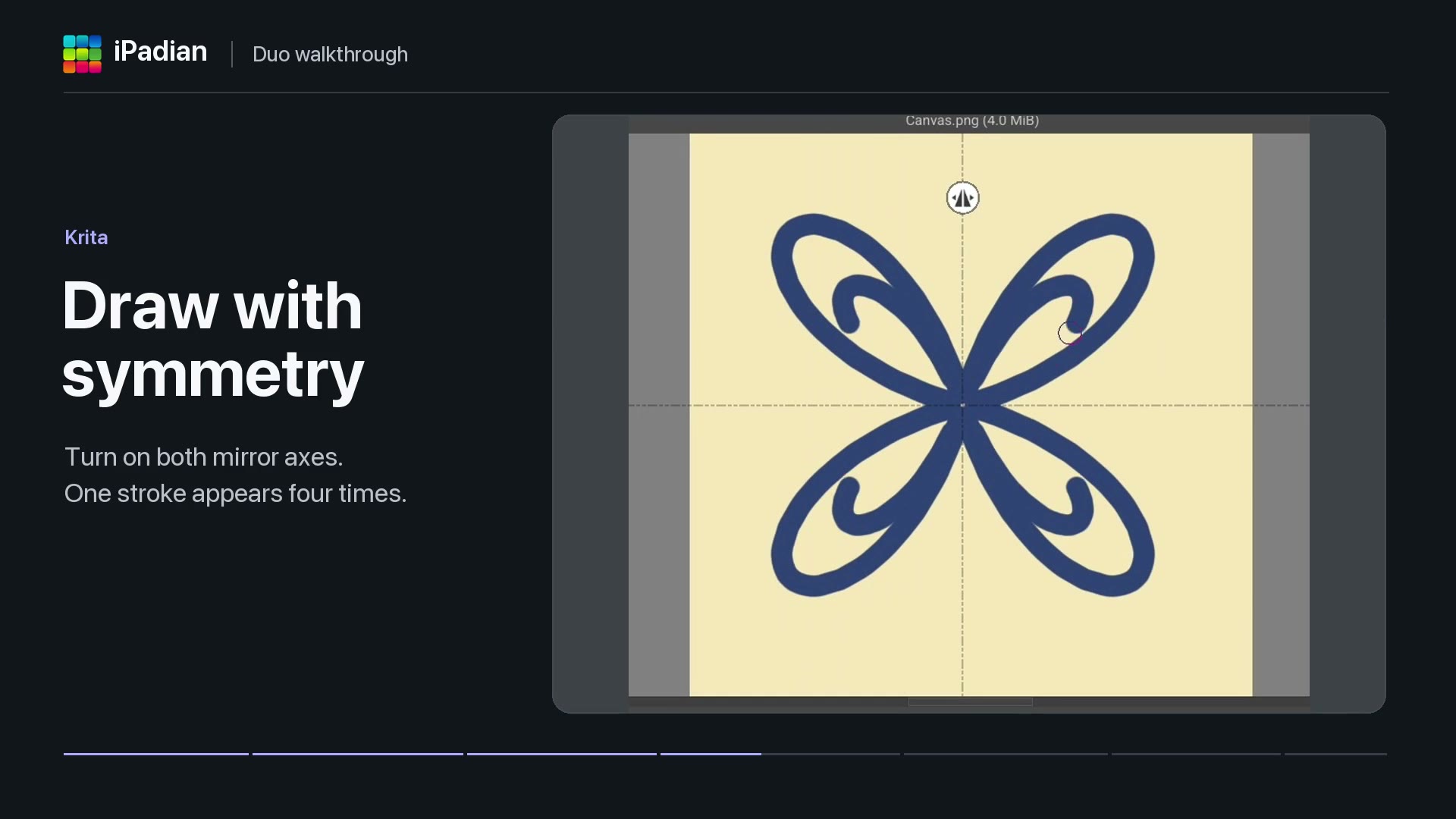 40 seconds
Apps inside iPadian Duo
Watch Solar Smash in action, draw with symmetry in Krita and see Photoroom remove a photo’s background. The showcase also opens Moises to its sign-in screen in Duo.
Watch video